
About the Attorney Share MyCase Integration
The integration supports the following functionality:
MyCase → Attorney Share
-
When moving a lead to the
Send to Attorney Sharestatus, the integration will automatically post the case on the Attorney Share marketplace -
After matching with an attorney on Attorney Share, the referee attorney has to contact the potential client and sign them
-
If the referee attorney is successful in signing the client, mark the MyCase lead as Signed
-
If the referee attorney is not successful in signing the client, mark the MyCase lead as Referred / Declined
-
Setup
Create Custom Lead Status in MyCase
-
Login to MyCase as a user with administrator privileges
-
Click

Settingsin the header, and chooseAll Settings -
In the left menu, click
Leads -
Click on the
Statusestab -
Click
Add Status -
Enter
Send to Attorney Shareand clickSave Status. It is important to type this in exactly as shown.
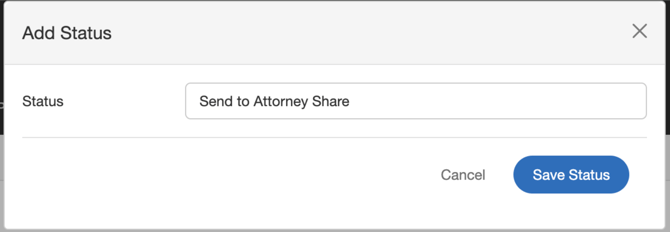
Creating a custom lead status
- Adjust the ordering of the new lead status to match the workflow of the organization
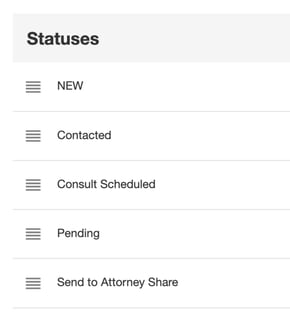
- Back on the Leads dashboard, you will see a new column for the
Send to Attorney Sharelead status

Connecting Attorney Share to MyCase
- Login to Attorney Share as a user with administrator privileges
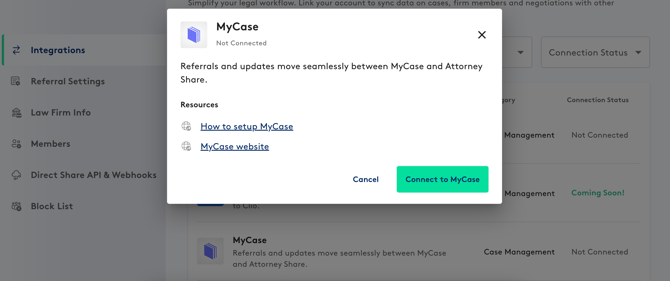
- Navigate to
Firm Settings→Integrationsor click here - Locate the MyCase integration
- Click
Connect Follow the prompts to login to MyCase and authorize the Attorney Share integration
How To: Send a Referral from MyCase to Attorney Share
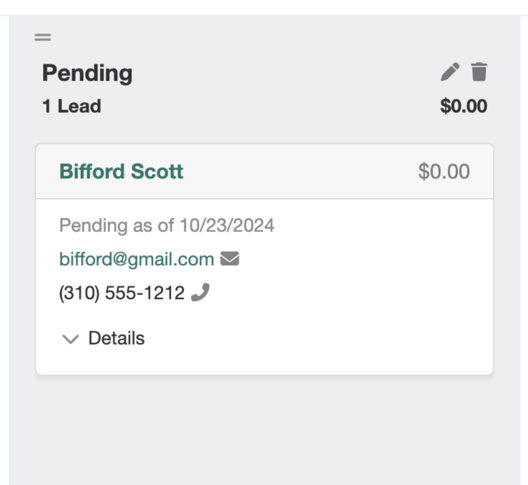
- Create a lead in MyCase
- Create a new lead, or start from an existing lead
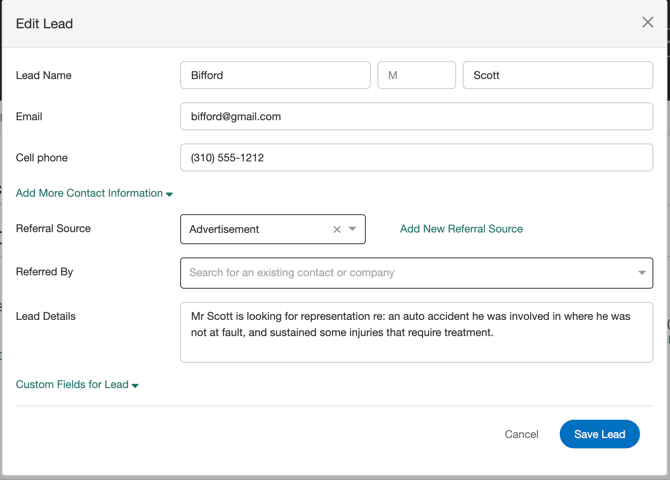
- The lead will appear on your Lead board
- Your firm will have different lead statuses defined, so this may vary for your organization
- Set Attorney Share specific fields
- When you’re ready to refer a case to the Attorney Share marketplace, you’ll first need to set the
Attorney Share Practice Areafield
- When you’re ready to refer a case to the Attorney Share marketplace, you’ll first need to set the
Please do not modify the Attorney Share Status and Attorney Share Case URL fields - these are managed by the integration.
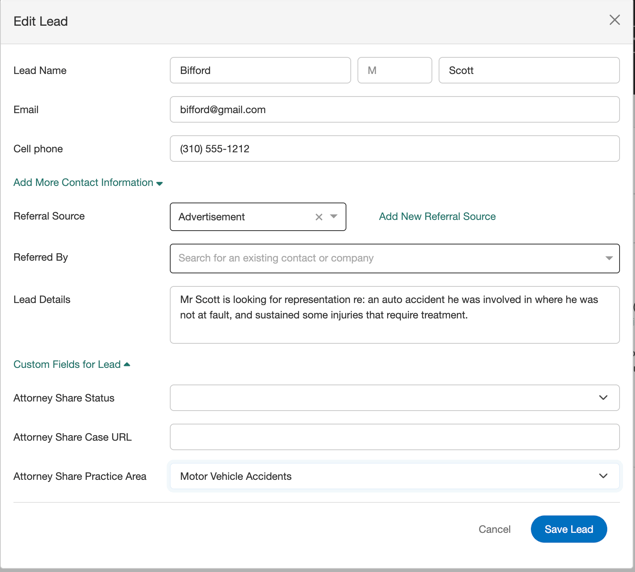
Set Attorney Share Practice Area field
- Drag the lead into the
Send to Attorney Sharecolumn
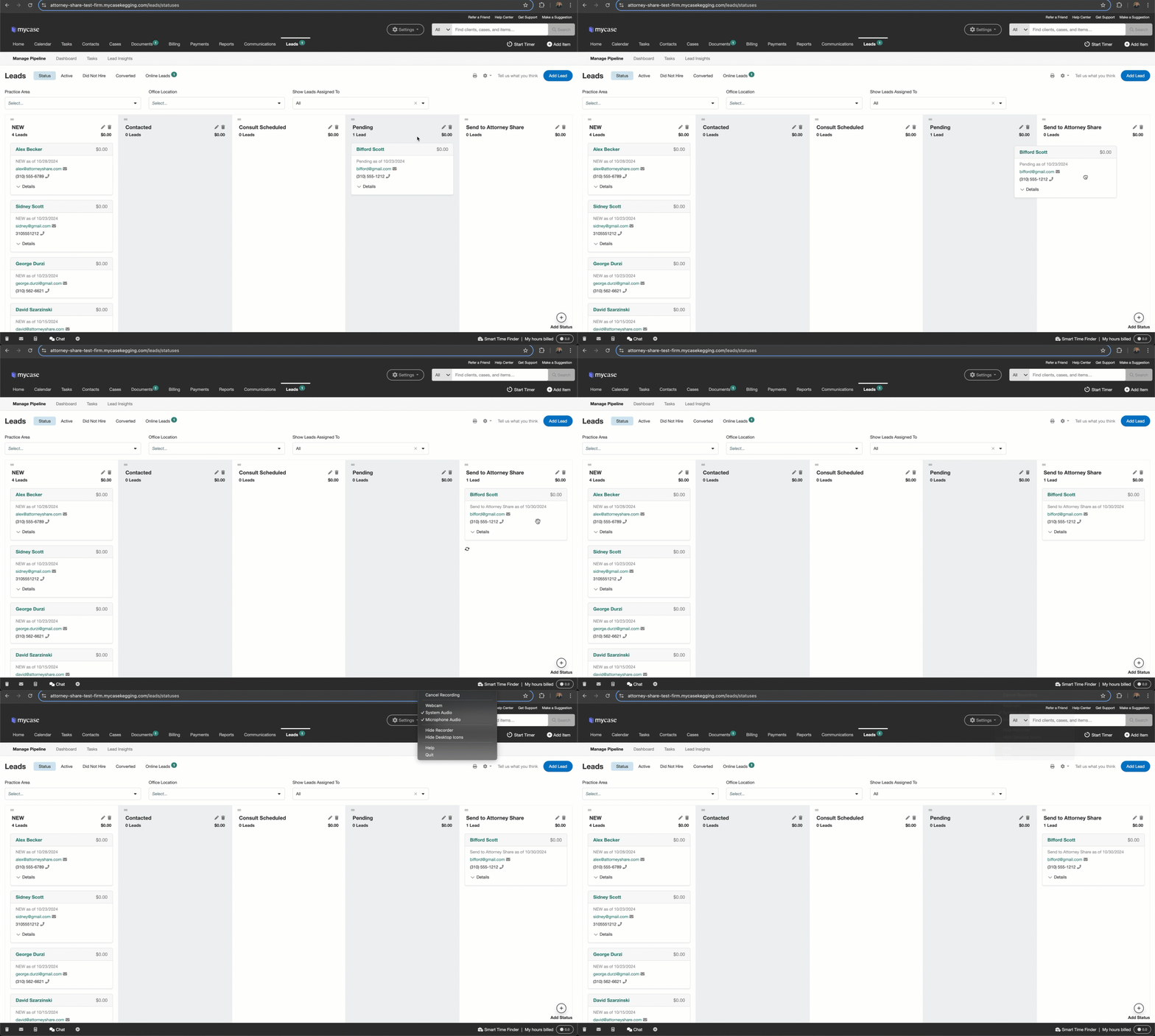
- This will automate the posting of the case on Attorney Share
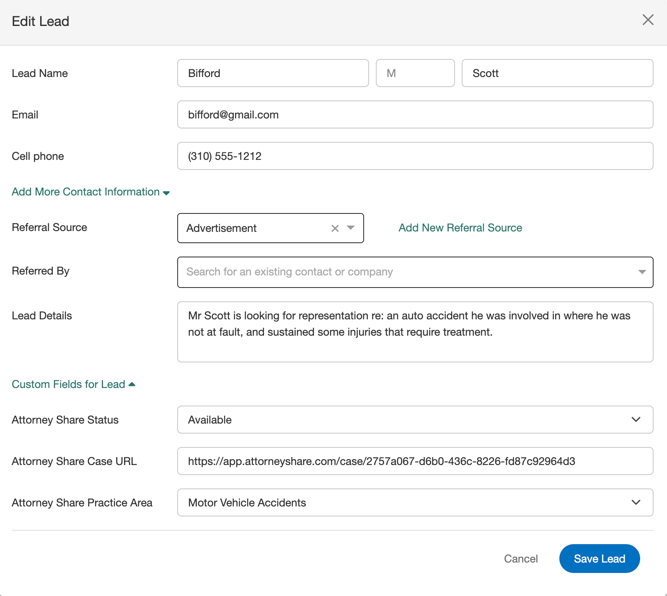
- In a few seconds, when you open the lead details, you will see that the lead now has:
Attorney Share Statusset toAvailableAttorney Share Case URLset to the URL of the case on the Attorney Share marketplace
To successfully send a lead from MyCase to Attorney Share, you need to make sure that the following fields have values:
- Lead Name
- Cell Phone
- Lead Address (under
Add More Contact Information) - specifically the State - Lead Details
- Attorney Share Practice Area
Creating a Status Update
- Create your case in MyCase as you normally would
- The integration will match cases to Attorney Share referrals using:
- Email address (primary matching criteria)
- Phone number
- Client name (similar match)
- Update the 'Case Stage' in MyCase and the update will automatically sync to Attorney Share
Viewing Updates in Attorney Share
- Navigate to My Referrals → Track Signed Referrals in Attorney Share
- Click the Client Name then View Case Status History
- You'll see the latest status from MyCase
- We’ll let the referring attorney know you updated the case