
The Attorney Share Salesforce + Litify integration makes it easy to send referrals to Attorney Share directly from intake.
To set up the integration, you will need to:
- Connect Attorney Share to your Salesforce instance
- Install the Attorney Share custom package in your Salesforce instance
- Configure the Attorney Share package in your Salesforce instance
What's New in Version 2.2 (released 2026-07-28)
- Added new
Select & Sendthat gives you a choice of sending a case to an existing Waterfall, or selecting an attorney from your Private Network to send the case to.- Removes the need to create a "Waterfall of 1" so you can choose who a case goes to.
What's New in Version 2.0 (released 2026-06-08)
- Resolved issue with Docrio API access.
- Refactored
Send To Attorney Shareautomation so that there is no longer any need to clone a flow template for each object you wish to send - simply add the new LWC quick action and you're good to go! - Improved outbound validation for a better user experience when sending referrals to Attorney Share.
- General refactoring to ensure significantly easier upgradability going forward.
Connect Attorney Share to Salesforce
1 - Prerequisite: Get your Salesforce instance url
-
Login to your Salesforce instance
- In the top menu, click the gear icon and choose
Setup - In the left menu, search for
My Domainand select it - Get the value of
Current My Domain Url; e.g.: astesting22-dev-ed.develop.my.salesforce.com
An organization administrator will need to complete the following steps in Attorney Share:
-
Click on the profile picture in the top-right of the screen, and select
Firm Settingsfrom the context menu -
In the left menu, click
Integrations -
Locate the Salesforce integration and click
Connect -
Enter your Salesforce instance url and click
Connect-
Make sure to enter the Salesforce instance url starting with
https://; e.g.:https://astesting22-dev-ed.develop.my.salesforce.com
-
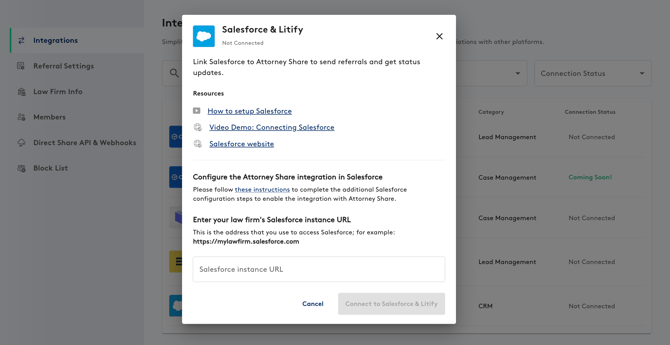
- You will be prompted to login to Salesforce and authorize the integration
-
Grant permission to the Attorney Share Salesforce integration
-
On the
Integrationspage, the Salesforce integration will now show as connected
Install and Configure Attorney Share Package in Salesforce
Follow these steps to install the Attorney Share package on your Salesforce instance:
-
Login to your Salesforce instance as a user with administrator privileges
-
Browse to the package installation link and follow the prompts to install the package
-
Choose the option to install for all users. You will see a warning that the package has not yet been submitted to the Salesforce AppExchange for security review and public listing. You will have to acknowledge this before proceeding with the installation.
- Click
Installto complete the installation
Configure Attorney Share Package
Please refer to the video walkthrough below to configure the Attorney Share package in your Salesforce instance.
0:00 - Installing the Package
0:29 - Assigning Permission Sets
1:29 - Adding Custom Metadata Records
1:58 - Connecting Attorney Share to your Own Objects
3:29 - Configuring Mappings Between your Objects and Attorney Share
5:53 - Adding the Send to Attorney Share Action
8:39 - Sending your Records to Attorney Share
If you have a previous version of the Attorney Share integration installed, and have already configured mappings between your objects and Attorney Share, you can skip to 5:53 Adding the Send to Attorney Share Action.
Appendix - Docrio API Access
Litify charges integrations partners $2,000 per year / per Litify customer to access the Docrio API to retrieve documents. We pass this cost through to our customers, and it's only required if you'd like to send documents from Docrio as part of sending referrals to Attorney Share.
This cost is waived for customers on our $999 subscription program.